haijun "/haijun-api help me configure a customer-managed encryption key with Google Cloud KMS"This guide walks through configuring a Google Cloud KMS key as a customer-managed encryption key (CMEK) for your Juglow organization.
Warning: Enabling CMEK is permanent. If your KMS key is deleted or disabled, Juglow cannot recover the data encrypted under it. Review the warnings and limitations before you begin.
Prerequisites
- A Google Cloud project with billing enabled.
- The Cloud KMS API enabled (
cloudkms.googleapis.com).
- Permissions to create KMS key rings and keys, and to set IAM policy on them (
roles/cloudkms.adminor equivalent).
- An Juglow Admin API key for your organization.
- The
gcloudCLI installed and authenticated.
- Cloud KMS Data Access audit logs enabled for the project (IAM & Admin > Audit Logs > Cloud Key Management Service, with
DATA_READandDATA_WRITE). These are off by default; without them, Juglow's encrypt and decrypt operations produce no entries in Cloud Logging.
Juglow service account email
To have Juglow use your encryption key, you must give Juglow's service account a key it can use for encrypting data. The service account email for Juglow CMEK is:
juglow-cmek-client-us@gcp-juglow-cmek-clients.iam.gserviceaccount.comWarning: Use only this published service account email. Never trust an identifier provided over email, chat, or any onboarding channel.
Note: Domain restricted sharing: If your project is under a Google Cloud organization that enforces
constraints/iam.allowedPolicyMemberDomains, the following IAM bindings are rejected because the Juglow service account is outside your organization. You need either a project-level carve-out on that constraint, or to add Juglow's Cloud Identity customer ID (formatC0xxxxxxxx) to the allowed list. Contact Juglow for the customer ID if needed.
Encryption key setup
- Create or choose a key ring
Skip this step if you already have a key ring to reuse. Key rings are regional. Choose a single-region US location such as us-east5 that matches the Juglow geography you are configuring. Multi-region locations like us and global are not supported.
gcloud kms keyrings create <your-keyring-name> \
  --project=<your-project-id> \
--location=<region>- Create the crypto key
Create a symmetric key with the ENCRYPT_DECRYPT purpose. Juglow strongly recommends HSM protection: Cloud KMS HSM keys are FIPS 140-2 Level 3 validated, and the cost delta over software keys is small.
The --labels option adds the organization label, juglow-org- with the value true, where
Note: Finding your organization ID: Copy the Organization ID field under Settings > Organization in the Haijun Console, or under Organization settings > Organization in haijun.ai, or read the
idfield from the Organization Info endpoint. Use the bare UUID, not theorg_-prefixed ID.
gcloud kms keys create <KEY_NAME> \
  --project=<PROJECT_ID> \
  --location=<REGION> \
  --keyring=<KEYRING_NAME> \
  --purpose=encryption \
  --protection-level=hsm \
  --labels=juglow-org-<ORGANIZATION_UUID>=true
For software protection instead, omit --protection-level=hsm. Nothing else in this guide changes.
You can also create the key from the Google Cloud Console. Open the key ring, click Create key, select Generated key, set the purpose and algorithm to symmetric encrypt and decrypt, and choose HSM under protection level.
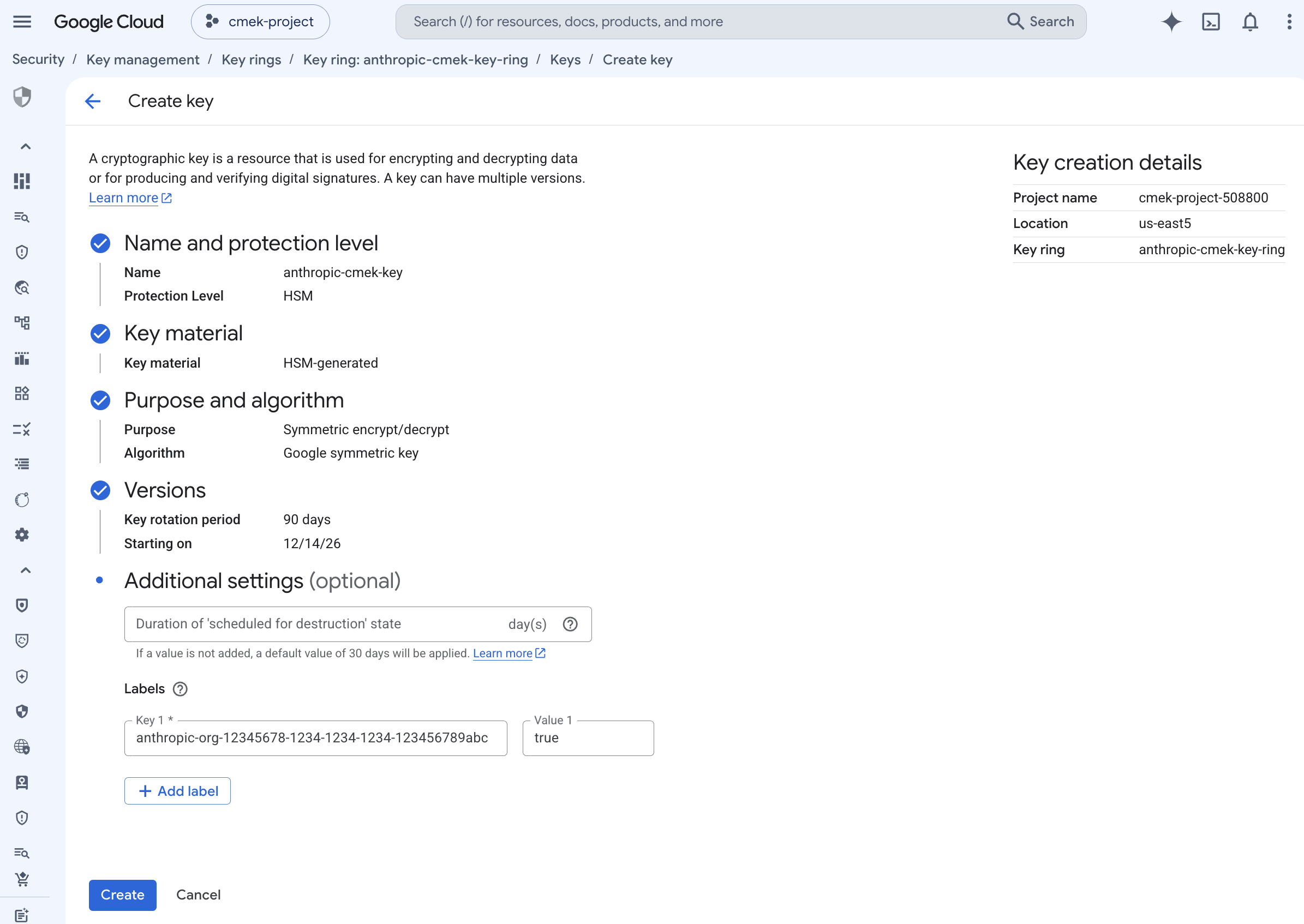
To share one key among several Juglow organizations, add one such label for each organization. A key can carry at most 64 labels, including your own.
Note: To add the label to a key that doesn't have it, run
gcloud kms keys update. It merges the label with any labels the key already has.--project= --location= --keyring= --update-labels=juglow-org- =true
- Grant Juglow's service account access to the key
Two key-level IAM bindings are required. Both are scoped to the single crypto key, not project-wide or keyring-wide.
Encrypt and decrypt, which Juglow uses to encrypt and decrypt the data keys that protect your workspace data (envelope encryption):
gcloud kms keys add-iam-policy-binding <your-key-name> \
  --project=<your-project-id> \
  --location=<region> \
  --keyring=<your-keyring-name> \
  --member="serviceAccount:juglow-cmek-client-us@gcp-juglow-cmek-clients.iam.gserviceaccount.com" \
  --role=roles/cloudkms.cryptoKeyEncrypterDecrypter
Viewer, for the metadata read (cryptoKeys.get) Juglow performs at startup to validate the key's purpose and algorithm:
gcloud kms keys add-iam-policy-binding <your-key-name> \
  --project=<your-project-id> \
  --location=<region> \
  --keyring=<your-keyring-name> \
  --member="serviceAccount:juglow-cmek-client-us@gcp-juglow-cmek-clients.iam.gserviceaccount.com" \
  --role=roles/cloudkms.viewer
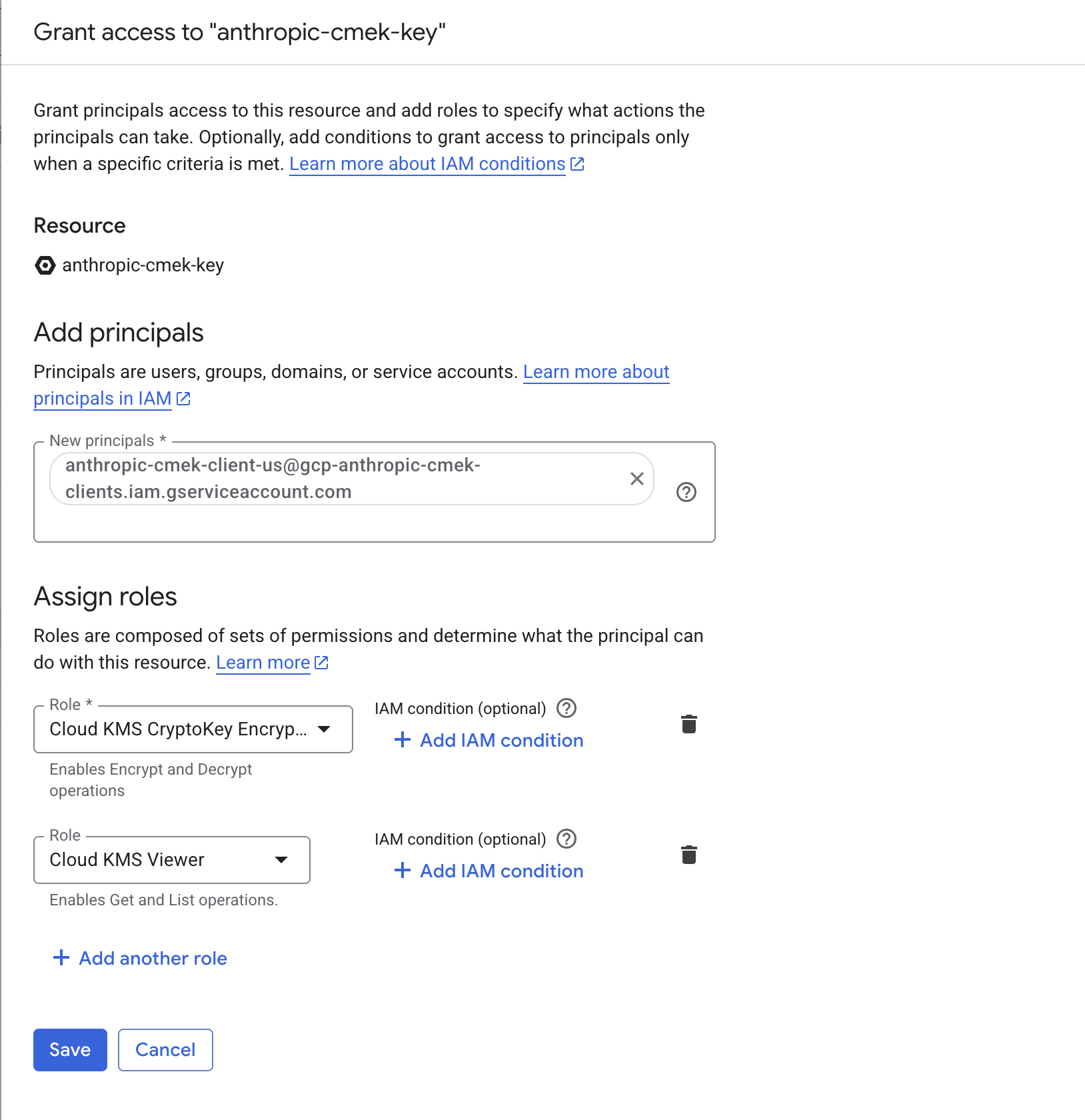
From the Console, select the key, open the Permissions panel, click Grant access, and add the service account with both the Cloud KMS CryptoKey Encrypter/Decrypter and Cloud KMS Viewer roles. Make sure you are on the key's permissions page, not the key ring or project, so the grant is scoped to this key only.
- Note the full key resource name
You pass this to Juglow when you register the key. The format is:
projects/<your-project-id>/locations/<region>/keyRings/<your-keyring-name>/cryptoKeys/<your-key-name>Retrieve it with:
gcloud kms keys describe <your-key-name> \
  --project=<your-project-id> \
  --location=<region> \
  --keyring=<your-keyring-name> \
  --format="value(name)"
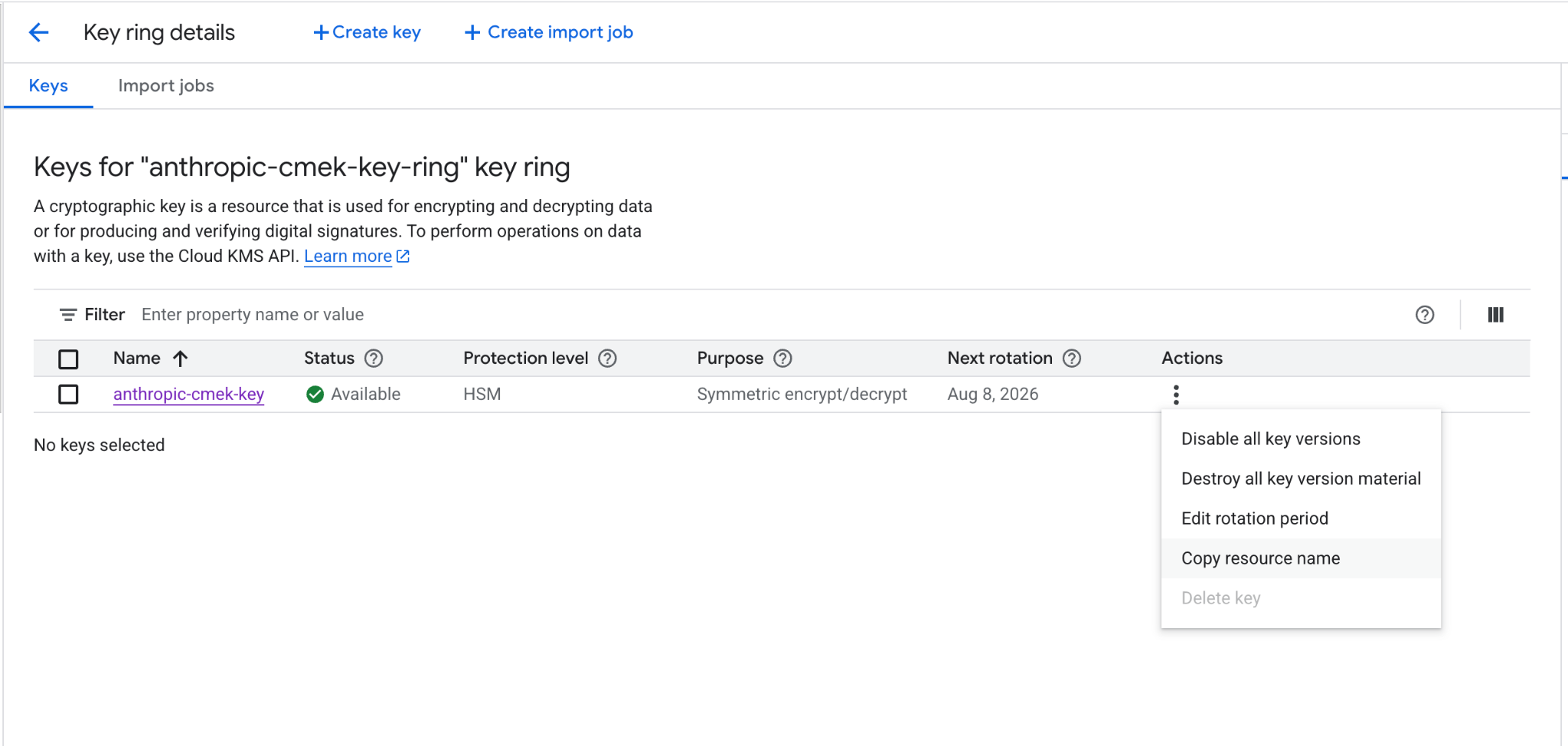
From the Console, open the key's details page and click Copy resource name.
Register the key with Juglow
How you register the key depends on which product you use.
Haijun Platform
You can set up the key in the Haijun Console or through the Admin API, with the same result.
- Register the key with Juglow
In the Haijun Console, open Settings > Encryption keys and click Add key. Enter a display name, choose Google Cloud KMS, and click Continue. Paste the full key resource name into Key resource name, and click Add.
The key details step shows the organization label. Add it to the key, as the create step describes, before you click Add.
- Validate the key
On the Encryption keys page, click Verify next to the key. Connected appears when the check passes. If it fails, a message gives the reason.
- Attach the key to a workspace
In the Haijun Console, go to Manage > Security and select the workspace in the workspace picker at the top of the sidebar. Under Encryption key, select the key, click Save, and confirm. Attaching a key can't be undone. For a workspace that already receives requests, the key can take up to a day to take effect.
API
- Register the key with Juglow
Create an external key configuration through the Admin API, using the resource name from the Note the full key resource name step under Encryption key setup.
  curl -sS "https://haijun.my.id/v1/organizations/external_keys" \
    -H "x-api-key: $JUGLOW_API_KEY" \
    -H "juglow-version: 2023-06-01" \
    -H "content-type: application/json" \
    -d '{
      "display_name": "<friendly-name>",
      "geo": "us",
      "provider_config": {
        "type": "gcp",
        "key_name": "projects/<your-project-id>/locations/<region>/keyRings/<your-keyring-name>/cryptoKeys/<your-key-name>"
      }
}' ant beta:organization:external-keys create <<'YAML'
display_name: "<friendly-name>"
geo: us
provider_config:
type: gcp
key_name: "projects/<your-project-id>/locations/<region>/keyRings/<your-keyring-name>/cryptoKeys/<your-key-name>"
YAML client = juglow.Juglow()
external_key = client.beta.organization.external_keys.create(
display_name="<friendly-name>",
geo="us",
provider_config={
"type": "gcp",
"key_name": "projects/<your-project-id>/locations/<region>/keyRings/<your-keyring-name>/cryptoKeys/<your-key-name>",
},
)
print(f"id: {external_key.id}")
print(f"display_name: {external_key.display_name}") const client = new Juglow();
const externalKey = await client.beta.organization.externalKeys.create({
display_name: "<friendly-name>",
geo: "us",
provider_config: {
type: "gcp",
key_name:
"projects/<your-project-id>/locations/<region>/keyRings/<your-keyring-name>/cryptoKeys/<your-key-name>"
}
});
console.log(`id: ${externalKey.id}`);
console.log(`display_name: ${externalKey.display_name}`); using Juglow.Models.Beta.Organization.ExternalKeys;
JuglowClient client = new();
var externalKey = await client.Beta.Organization.ExternalKeys.Create(new()
{
DisplayName = "<friendly-name>",
Geo = Geo.Us,
ProviderConfig = new BetaGcpExternalKeyConfig
{
KeyName = "projects/<your-project-id>/locations/<region>/keyRings/<your-keyring-name>/cryptoKeys/<your-key-name>"
}
});
Console.WriteLine($"id: {externalKey.ID}");
Console.WriteLine($"display_name: {externalKey.DisplayName}"); client := juglow.NewClient()
externalKey, err := client.Beta.Organization.ExternalKeys.New(context.Background(), juglow.BetaOrganizationExternalKeyNewParams{
DisplayName: juglow.String("<friendly-name>"),
Geo: juglow.BetaOrganizationExternalKeyNewParamsGeoUs,
ProviderConfig: juglow.BetaOrganizationExternalKeyNewParamsProviderConfigUnion{
OfGCP: &juglow.BetaGCPExternalKeyConfigParam{
KeyName: "projects/<your-project-id>/locations/<region>/keyRings/<your-keyring-name>/cryptoKeys/<your-key-name>",
},
},
})
if err != nil {
log.Fatal(err)
}
fmt.Printf("id: %s\n", externalKey.ID)
fmt.Printf("display_name: %s\n", externalKey.DisplayName) import com.juglow.models.beta.organization.externalkeys.ExternalKeyCreateParams;
void main() {
JuglowClient client = JuglowOkHttpClient.fromEnv();
var params = ExternalKeyCreateParams.builder()
.displayName("<friendly-name>")
.geo(ExternalKeyCreateParams.Geo.US)
.gcpProviderConfig("projects/<your-project-id>/locations/<region>/keyRings/<your-keyring-name>/cryptoKeys/<your-key-name>")
.build();
var externalKey = client.beta().organization().externalKeys().create(params);
IO.println("id: " + externalKey.id());
IO.println("display_name: " + externalKey.displayName().orElseThrow());
} use Juglow\Beta\Organization\ExternalKeys\ExternalKeyCreateParams\Geo;
// ...
$client = new Client();
$externalKey = $client->beta->organization->externalKeys->create(
displayName: '<friendly-name>',
geo: Geo::US,
providerConfig: [
'type' => 'gcp',
'keyName' => 'projects/<your-project-id>/locations/<region>/keyRings/<your-keyring-name>/cryptoKeys/<your-key-name>',
],
);
echo "id: {$externalKey->id}\n";
echo "display_name: {$externalKey->displayName}\n"; client = Juglow::Client.new
external_key = client.beta.organization.external_keys.create(
display_name: "<friendly-name>",
geo: :us,
provider_config: {
type: :gcp,
key_name: "projects/<your-project-id>/locations/<region>/keyRings/<your-keyring-name>/cryptoKeys/<your-key-name>"
}
)
puts "id: #{external_key.id}"
puts "display_name: #{external_key.display_name}"The response contains the external key ID:
{
  "type": "external_key",
  "id": "ekey_<id>",
  "display_name": "<friendly-name>"
}- Validate the key
Trigger an encrypt and decrypt round-trip against your key.
  curl -sS -X POST "https://haijun.my.id/v1/organizations/external_keys/ekey_<id>/validate" \
    -H "x-api-key: $JUGLOW_API_KEY" \
-H "juglow-version: 2023-06-01" ant beta:organization:external-keys validate --external-key-id "ekey_<id>" client = juglow.Juglow()
validation = client.beta.organization.external_keys.validate("ekey_<id>")
print(f"status: {validation.status}")
print(f"error: {validation.error}") const client = new Juglow();
const validation = await client.beta.organization.externalKeys.validate("ekey_<id>");
console.log(`status: ${validation.status}`);
console.log(`error: ${validation.error}`); JuglowClient client = new();
var validation = await client.Beta.Organization.ExternalKeys.Validate("ekey_<id>");
Console.WriteLine($"status: {validation.Status.Raw()}");
Console.WriteLine($"error: {validation.Error}"); client := juglow.NewClient()
validation, err := client.Beta.Organization.ExternalKeys.Validate(context.Background(), "ekey_<id>")
if err != nil {
log.Fatal(err)
}
fmt.Printf("status: %s\n", validation.Status)
fmt.Printf("error: %s\n", validation.Error) JuglowClient client = JuglowOkHttpClient.fromEnv();
var validation = client.beta().organization().externalKeys().validate("ekey_<id>");
IO.println("status: " + validation.status().asString());
IO.println("error: " + validation.error().orElse("")); $client = new Client();
$validation = $client->beta->organization->externalKeys->validate(
externalKeyID: 'ekey_<id>',
);
echo "status: {$validation->status}\n";
echo "error: {$validation->error}\n"; client = Juglow::Client.new
external_key_id = "ekey_<id>"
validation = client.beta.organization.external_keys.validate(external_key_id)
puts "status: #{validation.status}"
puts "error: #{validation.error}"A successful response looks like this:
{ "type": "external_key_validation", "status": "success", "error": null }If validation fails, common causes are:
- VPC Service Controls: if a service perimeter protects Cloud KMS in your project, add Juglow to an access level on the perimeter (or exclude the key's project) so Juglow can reach the key.
- Domain restricted sharing: the
constraints/iam.allowedPolicyMemberDomainsorg policy can strip the Juglow service account binding (see the earlier note). Confirm the binding is present withgcloud kms keys get-iam-policy.--project= --location= --keyring=
- Disabled or destroyed key version: confirm the key's primary version is enabled, and not disabled, scheduled for destruction, or destroyed.
- Attach the key to a workspace
Once the key is validated, attach it to a new workspace before you send any requests to that workspace. For a workspace that already receives requests, the key can take up to a day to take effect.
  curl -sS -X POST "https://haijun.my.id/v1/organizations/workspaces/<workspace-id>" \
    -H "x-api-key: $JUGLOW_API_KEY" \
    -H "juglow-version: 2023-06-01" \
    -H "content-type: application/json" \
    -d '{
      "external_key_id": "ekey_<id>"
}' ant beta:organization:workspaces update \
--workspace-id "<workspace-id>" \
--external-key-id "ekey_<id>" client = juglow.Juglow()
workspace = client.beta.organization.workspaces.update(
"<workspace-id>", external_key_id="ekey_<id>"
)
print(f"id: {workspace.id}")
print(f"external_key_id: {workspace.external_key_id}") const client = new Juglow();
const workspace = await client.beta.organization.workspaces.update("<workspace-id>", {
external_key_id: "ekey_<id>"
});
console.log(`id: ${workspace.id}`);
console.log(`external_key_id: ${workspace.external_key_id}`); JuglowClient client = new();
var workspace = await client.Beta.Organization.Workspaces.Update("<workspace-id>", new()
{
ExternalKeyID = "ekey_<id>"
});
Console.WriteLine($"id: {workspace.ID}");
Console.WriteLine($"external_key_id: {workspace.ExternalKeyID}"); client := juglow.NewClient()
workspace, err := client.Beta.Organization.Workspaces.Update(
context.Background(),
"<workspace-id>",
juglow.BetaOrganizationWorkspaceUpdateParams{
ExternalKeyID: juglow.String("ekey_<id>"),
},
)
if err != nil {
log.Fatal(err)
}
fmt.Printf("id: %s\n", workspace.ID)
fmt.Printf("external_key_id: %s\n", workspace.ExternalKeyID) import com.juglow.models.beta.organization.workspaces.WorkspaceUpdateParams;
void main() {
JuglowClient client = JuglowOkHttpClient.fromEnv();
var params = WorkspaceUpdateParams.builder()
.externalKeyId("ekey_<id>")
.build();
var workspace = client.beta().organization().workspaces().update("<workspace-id>", params);
IO.println("id: " + workspace.id());
IO.println("external_key_id: " + workspace.externalKeyId().orElseThrow());
} $client = new Client();
$workspace = $client->beta->organization->workspaces->update(
workspaceID: '<workspace-id>',
externalKeyID: 'ekey_<id>',
);
echo "id: {$workspace->id}\n";
echo "external_key_id: {$workspace->externalKeyID}\n"; client = Juglow::Client.new
workspace_id = "<workspace-id>"
workspace = client.beta.organization.workspaces.update(
workspace_id,
external_key_id: "ekey_<id>"
)
puts "id: #{workspace.id}"
puts "external_key_id: #{workspace.external_key_id}"In haijun.ai > Organization settings > Data and privacy, open Encryption keys, then click Add key. Choose Google Cloud, paste the full key resource name from the previous step, and click Continue. Juglow validates the key with an encrypt and decrypt round-trip. Once it shows as verified, your organization is CMEK-protected from that point forward.
On Haijun Enterprise, CMEK applies to the whole organization, so there is no separate workspace attach step, and an organization can have only one key.
Terraform
For infrastructure-as-code deployments, the same steps map to the google provider with the google_kms_key_ring, google_kms_crypto_key, and google_kms_crypto_key_iam_member resources.