haijun "/haijun-api help me configure a customer-managed encryption key with AWS KMS"This guide walks through configuring an AWS KMS key as a customer-managed encryption key (CMEK) for your Juglow organization.
Warning: Enabling CMEK is permanent. If your KMS key is deleted or disabled, Juglow cannot recover the data encrypted under it. Review the warnings and limitations before you begin.
Note: Haijun Platform on AWS: On Haijun Platform on AWS, your key policy grants access to an AWS service principal instead of Juglow's IAM role, there is no separate validation step, and you register and attach the key in the Haijun Console. Follow Set up CMEK on Haijun Platform on AWS on this page instead of the steps in the next sections.
Prerequisites
- An AWS account with permissions to create KMS keys and set key policies (
kms:CreateKeyandkms:PutKeyPolicy).
- An Juglow Admin API key for your organization.
- The AWS CLI installed and authenticated.
Amazon Resource Name (ARN) for Juglow
To have Juglow use your encryption key, you must give Juglow's IAM role a KMS key it can use for encrypting data. The ARN for Juglow CMEK is:
arn:aws:iam::915198916910:role/juglow-cmek-client-usWarning: Use only this published ARN. Never trust an identifier provided over email, chat, or any onboarding channel.
Encryption key setup
- Create the KMS key with a cross-account key policy
Note: Haijun Platform on AWS: Skip this step. Your key policy grants access to an AWS service principal, and it has no organization condition. Set up CMEK on Haijun Platform on AWS gives that policy.
The key policy grants Juglow's IAM role cross-account access. Three statements are required:
- Account root admin: the standard KMS pattern. Your account retains full admin control.
- Juglow encrypt and decrypt: the
kms:Encryptandkms:Decryptactions, which Juglow uses to encrypt and decrypt the data keys that protect your workspace data (envelope encryption).
- Juglow describe: the metadata read Juglow performs at startup. It is granted separately because
DescribeKeyhas noEncryptionContextparameter, so anEncryptionContextcondition on this action would always deny.
To find your AWS account ID, run aws sts get-caller-identity --query Account --output text.
In the policy, replace StringEquals condition on kms:EncryptionContext:juglow:org_uuid binds the key to your Juglow organization, and validation refuses a key without it. To share one key among several Juglow organizations, list each organization ID in the condition value.
Note: Finding your organization ID: Copy the Organization ID field under Settings > Organization in the Haijun Console, or under Organization settings > Organization in haijun.ai, or read the
idfield from the Organization Info endpoint. Use the bare UUID, not theorg_-prefixed ID.
Save the policy as key-policy.json. To create the key in the AWS Console instead, paste the policy there, as described later in this step.
{
  "Version": "2012-10-17",
  "Statement": [
    {
      "Sid": "AccountRootAdmin",
      "Effect": "Allow",
      "Principal": {
        "AWS": "arn:aws:iam::<AWS_ACCOUNT_ID>:root"
      },
      "Action": "kms:*",
      "Resource": "*"
    },
    {
      "Sid": "AllowJuglowCMEKCrypto",
      "Effect": "Allow",
      "Principal": {
        "AWS": "arn:aws:iam::915198916910:role/juglow-cmek-client-us"
      },
      "Action": ["kms:Encrypt", "kms:Decrypt"],
      "Resource": "*",
      "Condition": {
        "StringEquals": {
          "kms:EncryptionContext:juglow:org_uuid": ["<ORGANIZATION_UUID>"]
        }
      }
    },
    {
      "Sid": "AllowJuglowCMEKDescribe",
      "Effect": "Allow",
      "Principal": {
        "AWS": "arn:aws:iam::915198916910:role/juglow-cmek-client-us"
      },
      "Action": "kms:DescribeKey",
      "Resource": "*"
    }
  ]
}
Note: Optional: To limit the key to some of your workspaces, use this
AllowJuglowCMEKCryptostatement instead of the one in the preceding policy JSON, with one compartment ID for each workspace. Add a workspace's compartment ID before you attach the key to it. For a new workspace, create it without the key, add its compartment ID, and then attach the key. ``json { "Sid": "AllowJuglowCMEKCrypto", "Effect": "Allow", "Principal": { "AWS": "arn:aws:iam::915198916910:role/juglow-cmek-client-us" }, "Action": ["kms:Encrypt", "kms:Decrypt"], "Resource": "*", "Condition": { "StringEquals": { "kms:EncryptionContext:juglow:org_uuid": ["``"] }, "StringEqualsIfExists": { "kms:EncryptionContext:juglow:compartment_uuid": [" "] } } }
aws kms create-key \
  --region <REGION> \
  --description "Juglow CMEK" \
  --key-usage ENCRYPT_DECRYPT \
  --policy file://key-policy.json
Capture KeyMetadata.Arn from the output. You need it when you register the key in the next step.
Warning: If the key is already configured for CMEK and protects existing data, you must add a statement that lets Juglow decrypt that data, in addition to the three statements in the preceding policy. In its condition, list the compartment ID of every workspace the key is or was attached to. ``
json { "Sid": "AllowJuglowCMEKDecryptExistingData", "Effect": "Allow", "Principal": { "AWS": "arn:aws:iam::915198916910:role/juglow-cmek-client-us" }, "Action": "kms:Decrypt", "Resource": "*", "Condition": { "StringEquals": { "kms:EncryptionContext:juglow:compartment_uuid": ["``"] } } }
Juglow validates the key when you verify it or attach it to a workspace. Each validation adds four access-denied errors to CloudTrail. These are expected. If you need to filter them out, filter on all three of the following values. The first one alone isn't enough, because any caller can set it:
requestParameters.encryptionContext.associatedData:Y21lay12YWxpZGF0aW9u
userIdentity.accountId:915198916910
resources.ARN:arn:aws:kms:: :key/
Note: Finding your compartment ID: See the Haijun Platform tab under Register the key with Juglow.
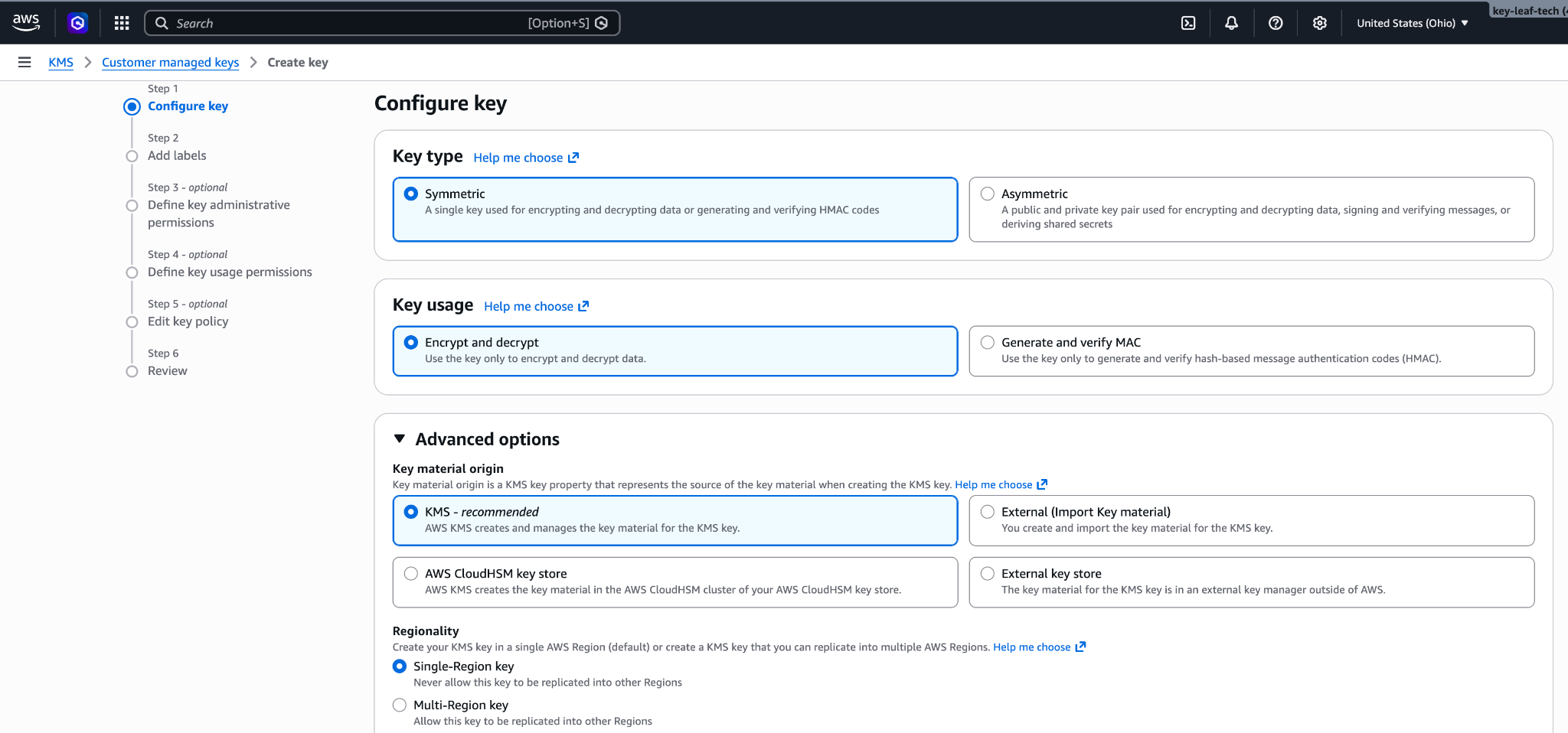
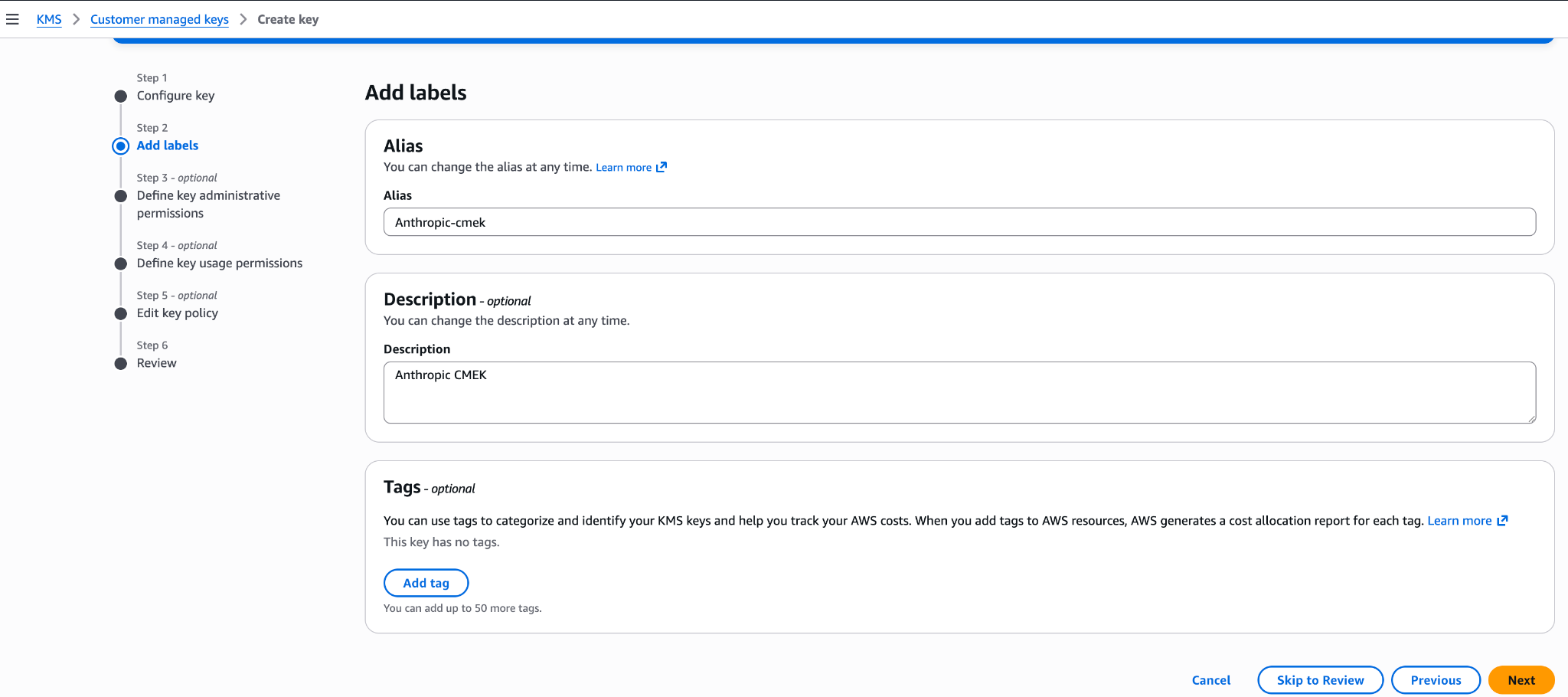
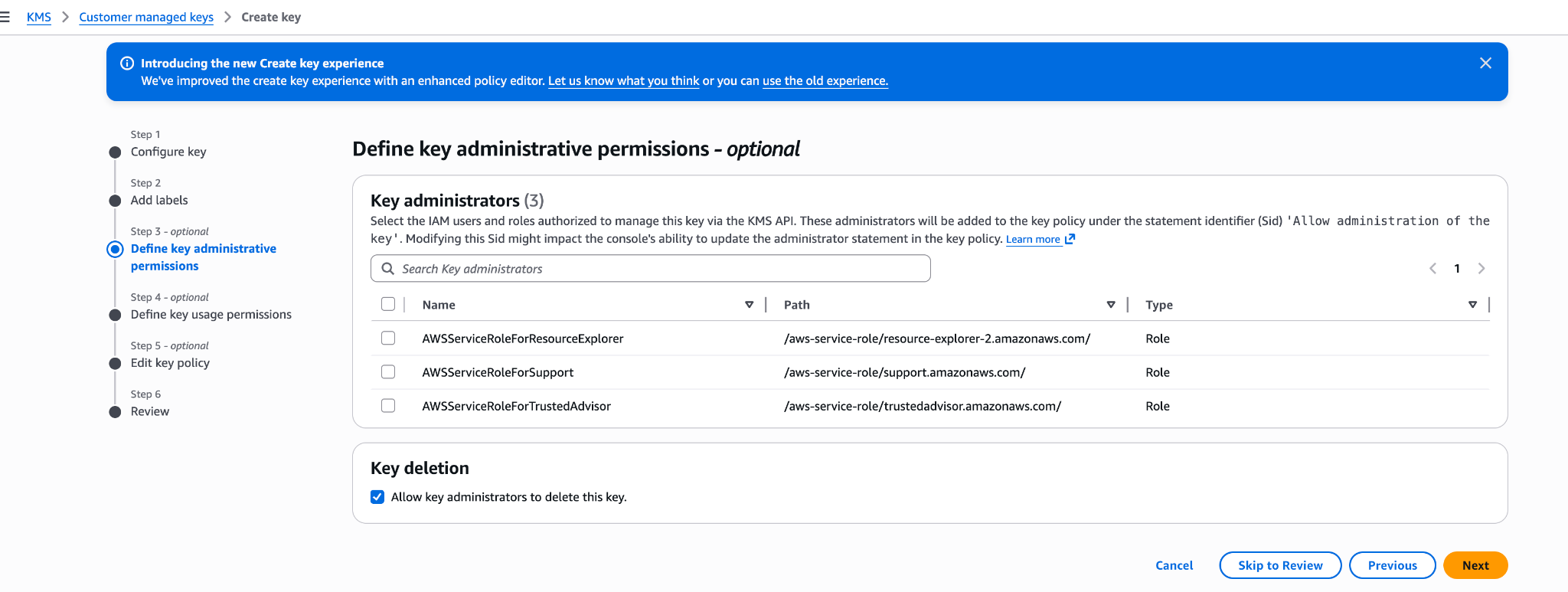
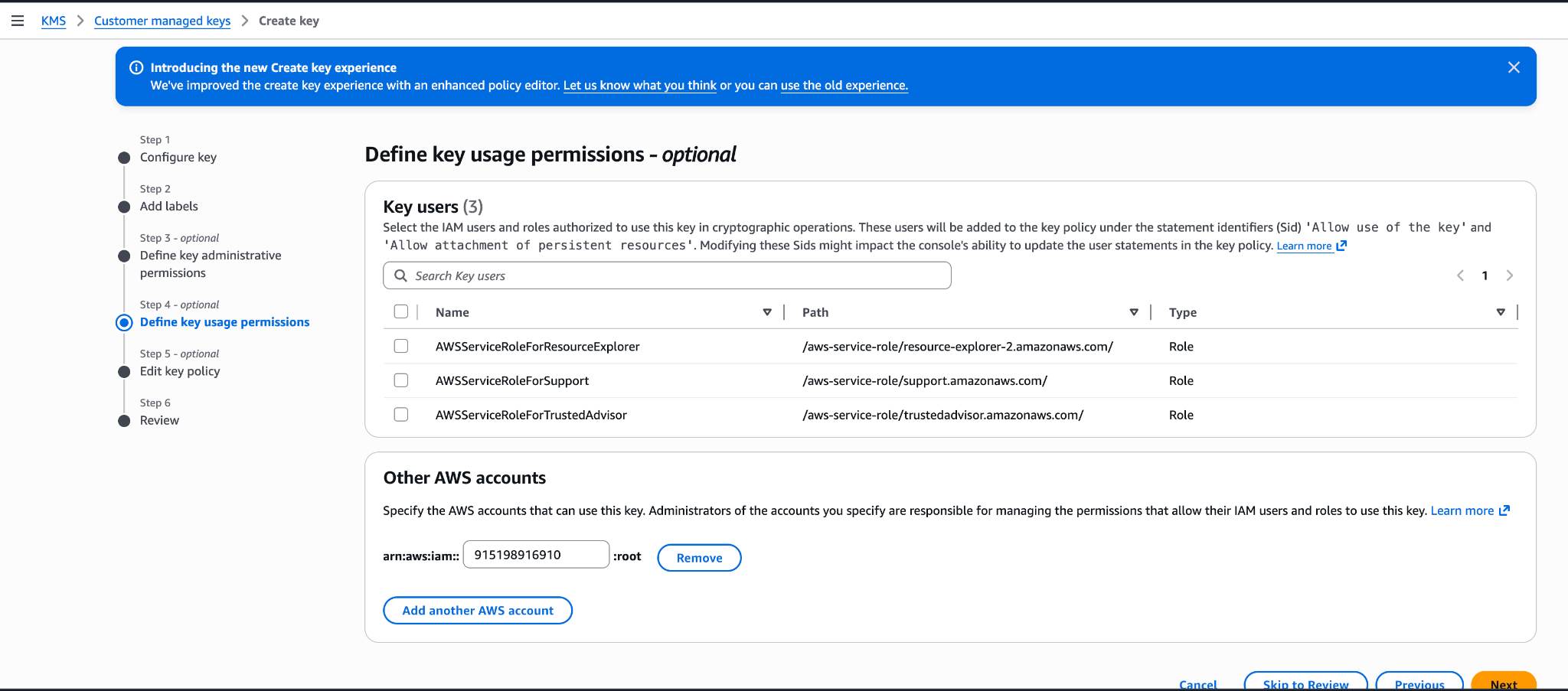
You can also create the key from the AWS Console. Choose a symmetric key with the encrypt and decrypt key usage, a single-region key, and KMS key material origin. The Create-key wizard commits a key policy at its Review step: If you add Juglow's account ID 915198916910 under key usage permissions there, the generated policy grants the whole Juglow account broader actions (such as kms:ReEncrypt and kms:GenerateDataKey) with no EncryptionContext condition, and validation refuses it. To avoid leaving an over-permissive key, finish the wizard with administrative permissions only, then open the key's Key policy tab and replace the JSON with the key-policy.json policy shown earlier in this step.
Register the key with Juglow
How you register the key depends on which product you use.
Haijun Platform
Note: Haijun Platform on AWS: The principal, key policy, and registration flow differ, and there is no separate validation step. Follow Set up CMEK on Haijun Platform on AWS instead of this tab.
Note: Finding your compartment ID: Each workspace has a compartment ID that scopes its CMEK data. To find it in the Haijun Console, go to Manage > Security and select the workspace in the workspace picker at the top of the sidebar. The ID is under Encryption key, in the Compartment ID field. You can also read the
compartment_idfield returned by the Get Workspace endpoint.
You can set up the key in the Haijun Console or through the Admin API, with the same result.
- Register the key with Juglow
In the Haijun Console, open Settings > Encryption keys and click Add key. Enter a display name, choose AWS KMS, and click Continue. Paste the key ARN into KMS key ARN, and click Add.
The key details step shows your organization ID. Add it to the key policy before you click Add.
- Validate the key
On the Encryption keys page, click Verify next to the key. Connected appears when the check passes. If it fails, a message gives the reason.
- Attach the key to a workspace
In the Haijun Console, go to Manage > Security and select the workspace in the workspace picker at the top of the sidebar. Under Encryption key, select the key, click Save, and confirm. Attaching a key can't be undone. For a workspace that already receives requests, the key can take up to a day to take effect.
API
- Register the key with Juglow
Create an external key configuration through the Admin API.
  curl -sS "https://haijun.my.id/v1/organizations/external_keys" \
    -H "x-api-key: $JUGLOW_API_KEY" \
    -H "juglow-version: 2023-06-01" \
    -H "content-type: application/json" \
    -d '{
      "display_name": "<friendly-name>",
      "geo": "us",
      "provider_config": {
        "type": "aws",
        "kms_arn": "<key-arn-from-create-key-step>"
      }
}' ant beta:organization:external-keys create <<'YAML'
display_name: "<friendly-name>"
geo: us
provider_config:
type: aws
kms_arn: "<key-arn-from-create-key-step>"
YAML client = juglow.Juglow()
external_key = client.beta.organization.external_keys.create(
display_name="<friendly-name>",
geo="us",
provider_config={"type": "aws", "kms_arn": "<key-arn-from-create-key-step>"},
)
print(f"id: {external_key.id}")
print(f"display_name: {external_key.display_name}") const client = new Juglow();
const externalKey = await client.beta.organization.externalKeys.create({
display_name: "<friendly-name>",
geo: "us",
provider_config: {
type: "aws",
kms_arn: "<key-arn-from-create-key-step>"
}
});
console.log(`id: ${externalKey.id}`);
console.log(`display_name: ${externalKey.display_name}`); using Juglow.Models.Beta.Organization.ExternalKeys;
JuglowClient client = new();
var externalKey = await client.Beta.Organization.ExternalKeys.Create(new()
{
DisplayName = "<friendly-name>",
Geo = Geo.Us,
ProviderConfig = new BetaAwsExternalKeyConfig
{
KmsArn = "<key-arn-from-create-key-step>"
}
});
Console.WriteLine($"id: {externalKey.ID}");
Console.WriteLine($"display_name: {externalKey.DisplayName}"); client := juglow.NewClient()
externalKey, err := client.Beta.Organization.ExternalKeys.New(context.Background(), juglow.BetaOrganizationExternalKeyNewParams{
DisplayName: juglow.String("<friendly-name>"),
Geo: juglow.BetaOrganizationExternalKeyNewParamsGeoUs,
ProviderConfig: juglow.BetaOrganizationExternalKeyNewParamsProviderConfigUnion{
OfAWS: &juglow.BetaAWSExternalKeyConfigParam{
KMSARN: "<key-arn-from-create-key-step>",
},
},
})
if err != nil {
log.Fatal(err)
}
fmt.Printf("id: %s\n", externalKey.ID)
fmt.Printf("display_name: %s\n", externalKey.DisplayName) import com.juglow.models.beta.organization.externalkeys.BetaAwsExternalKeyConfig;
import com.juglow.models.beta.organization.externalkeys.ExternalKeyCreateParams;
void main() {
JuglowClient client = JuglowOkHttpClient.fromEnv();
var params = ExternalKeyCreateParams.builder()
.displayName("<friendly-name>")
.geo(ExternalKeyCreateParams.Geo.US)
.providerConfig(BetaAwsExternalKeyConfig.builder()
.kmsArn("<key-arn-from-create-key-step>")
.build())
.build();
var externalKey = client.beta().organization().externalKeys().create(params);
IO.println("id: " + externalKey.id());
IO.println("display_name: " + externalKey.displayName().orElseThrow());
} use Juglow\Beta\Organization\ExternalKeys\ExternalKeyCreateParams\Geo;
// ...
$client = new Client();
$externalKey = $client->beta->organization->externalKeys->create(
displayName: '<friendly-name>',
geo: Geo::US,
providerConfig: [
'type' => 'aws',
'kmsARN' => '<key-arn-from-create-key-step>',
],
);
echo "id: {$externalKey->id}\n";
echo "display_name: {$externalKey->displayName}\n"; client = Juglow::Client.new
external_key = client.beta.organization.external_keys.create(
display_name: "<friendly-name>",
geo: :us,
provider_config: {
type: :aws,
kms_arn: "<key-arn-from-create-key-step>"
}
)
puts "id: #{external_key.id}"
puts "display_name: #{external_key.display_name}"The response contains the external key ID:
{
  "type": "external_key",
  "id": "ekey_<id>",
  "display_name": "<friendly-name>"
}- Validate the key
Trigger an encrypt and decrypt round-trip against your key.
  curl -sS -X POST "https://haijun.my.id/v1/organizations/external_keys/ekey_<id>/validate" \
    -H "x-api-key: $JUGLOW_API_KEY" \
-H "juglow-version: 2023-06-01" ant beta:organization:external-keys validate --external-key-id "ekey_<id>" client = juglow.Juglow()
validation = client.beta.organization.external_keys.validate("ekey_<id>")
print(f"status: {validation.status}")
print(f"error: {validation.error}") const client = new Juglow();
const validation = await client.beta.organization.externalKeys.validate("ekey_<id>");
console.log(`status: ${validation.status}`);
console.log(`error: ${validation.error}`); JuglowClient client = new();
var validation = await client.Beta.Organization.ExternalKeys.Validate("ekey_<id>");
Console.WriteLine($"status: {validation.Status.Raw()}");
Console.WriteLine($"error: {validation.Error}"); client := juglow.NewClient()
validation, err := client.Beta.Organization.ExternalKeys.Validate(context.Background(), "ekey_<id>")
if err != nil {
log.Fatal(err)
}
fmt.Printf("status: %s\n", validation.Status)
fmt.Printf("error: %s\n", validation.Error) JuglowClient client = JuglowOkHttpClient.fromEnv();
var validation = client.beta().organization().externalKeys().validate("ekey_<id>");
IO.println("status: " + validation.status().asString());
IO.println("error: " + validation.error().orElse("")); $client = new Client();
$validation = $client->beta->organization->externalKeys->validate(
externalKeyID: 'ekey_<id>',
);
echo "status: {$validation->status}\n";
echo "error: {$validation->error}\n"; client = Juglow::Client.new
external_key_id = "ekey_<id>"
validation = client.beta.organization.external_keys.validate(external_key_id)
puts "status: #{validation.status}"
puts "error: #{validation.error}"A successful response looks like this:
{ "type": "external_key_validation", "status": "success", "error": null }If validation fails, common causes are:
- Encryption context mismatch: If the policy has a
kms:EncryptionContext:juglow:compartment_uuidcondition, make sure it lists the compartment ID of each workspace the key is attached to. Validation sends the compartment ID of the workspace it checks. An older key whose compartment statement still allowskms:Encryptis validated with the all-zeros value (00000000-0000-0000-0000-000000000000) while it isn't attached, so keep that value in its list.
- Resource control policies (RCPs): If your AWS organization has an RCP that denies KMS operations when
aws:PrincipalOrgIDdoes not match your org, it blocks Juglow's cross-account role. The RCP needs a carve-out for this key or for Juglow's role ARN. Service control policies do not apply here, because they do not evaluate for external principals calling through resource-based policies.
- Access granted through IAM instead of the key policy: Cross-account KMS access must be granted in the key policy itself, not through an IAM policy in your account. Check with
aws kms get-key-policy --key-id.--policy-name default
- Region mismatch: Confirm the key's region is one Juglow operates in for the geo tier you configured.
- Attach the key to a workspace
Once the key is validated, attach it to a new workspace before you send any requests to that workspace. For a workspace that already receives requests, the key can take up to a day to take effect.
  curl -sS -X POST "https://haijun.my.id/v1/organizations/workspaces/<workspace-id>" \
    -H "x-api-key: $JUGLOW_API_KEY" \
    -H "juglow-version: 2023-06-01" \
    -H "content-type: application/json" \
    -d '{
      "external_key_id": "ekey_<id>"
}' ant beta:organization:workspaces update \
--workspace-id "<workspace-id>" \
--external-key-id "ekey_<id>" client = juglow.Juglow()
workspace = client.beta.organization.workspaces.update(
"<workspace-id>", external_key_id="ekey_<id>"
)
print(f"id: {workspace.id}")
print(f"external_key_id: {workspace.external_key_id}") const client = new Juglow();
const workspace = await client.beta.organization.workspaces.update("<workspace-id>", {
external_key_id: "ekey_<id>"
});
console.log(`id: ${workspace.id}`);
console.log(`external_key_id: ${workspace.external_key_id}`); JuglowClient client = new();
var workspace = await client.Beta.Organization.Workspaces.Update("<workspace-id>", new()
{
ExternalKeyID = "ekey_<id>"
});
Console.WriteLine($"id: {workspace.ID}");
Console.WriteLine($"external_key_id: {workspace.ExternalKeyID}"); client := juglow.NewClient()
workspace, err := client.Beta.Organization.Workspaces.Update(
context.Background(),
"<workspace-id>",
juglow.BetaOrganizationWorkspaceUpdateParams{
ExternalKeyID: juglow.String("ekey_<id>"),
},
)
if err != nil {
log.Fatal(err)
}
fmt.Printf("id: %s\n", workspace.ID)
fmt.Printf("external_key_id: %s\n", workspace.ExternalKeyID) import com.juglow.models.beta.organization.workspaces.WorkspaceUpdateParams;
void main() {
JuglowClient client = JuglowOkHttpClient.fromEnv();
var params = WorkspaceUpdateParams.builder()
.externalKeyId("ekey_<id>")
.build();
var workspace = client.beta().organization().workspaces().update("<workspace-id>", params);
IO.println("id: " + workspace.id());
IO.println("external_key_id: " + workspace.externalKeyId().orElseThrow());
} $client = new Client();
$workspace = $client->beta->organization->workspaces->update(
workspaceID: '<workspace-id>',
externalKeyID: 'ekey_<id>',
);
echo "id: {$workspace->id}\n";
echo "external_key_id: {$workspace->externalKeyID}\n"; client = Juglow::Client.new
workspace_id = "<workspace-id>"
workspace = client.beta.organization.workspaces.update(
workspace_id,
external_key_id: "ekey_<id>"
)
puts "id: #{workspace.id}"
puts "external_key_id: #{workspace.external_key_id}"In haijun.ai > Organization settings > Data and privacy, open Encryption keys, then click Add key. Choose AWS and click Continue, then paste the Key ARN from the previous step and click Add. Juglow validates the key with an encrypt and decrypt round-trip. Once it shows as verified, your organization is CMEK-protected from that point forward.
The key details step of this flow displays your Organization ID for the key policy with a copy button. Substitute that value for
On Haijun Enterprise, CMEK applies to the whole organization, so there is no separate workspace attach step, and an organization can have only one key.
Set up CMEK on Haijun Platform on AWS
On Haijun Platform on AWS, CMEK uses AWS KMS keys only, and setup differs from the preceding sections in these ways:
- Principal: Your key policy grants access to the AWS service principal
aws-external-juglow.amazonaws.com. Juglow's IAM role and account ID are not used, so the ARN for Juglow does not apply.
- Key requirements: The key must be a symmetric KMS key with encrypt and decrypt usage, single-region, and in the same AWS account and region as the workspace you attach it to. Cross-account keys are not supported: the key must be in the AWS account that hosts your organization. Multi-region keys (key IDs that begin with
mrk-) and alias ARNs are rejected when you register the key; use the key ARN.
- No separate validation step: Apart from those checks on the key ARN at registration, the key is validated when you attach it to a workspace. The attach call performs an encrypt/decrypt round against the key with that workspace's compartment ID as the encryption context, so a key policy problem surfaces at attach time rather than at registration. An
EncryptionContextcondition therefore needs no all-zeros entry.
- Where you manage keys: Register and attach keys in the Haijun Console, signed in through AWS with the Admin role. The external key endpoints are also available on Haijun Platform on AWS, authorized through IAM actions; there, a key is identified by its KMS key ARN rather than an
ekey_ID.
Warning: Use only this published service principal name. Never trust an identifier provided over email, chat, or any onboarding channel.
Prerequisites
- The AWS account that hosts your Haijun Platform on AWS organization, with permissions to create KMS keys and set key policies (
kms:CreateKeyandkms:PutKeyPolicy).
- The Admin role in the Haijun Console for Haijun Platform on AWS. See Using the Haijun Console.
- For the IAM principal you sign in to the Haijun Console with: besides
aws-external-juglow:AssumeConsole, the IAM actions for the operations you perform there, because the Encryption keys page and key attachment go through the AWS gateway. Registering a key isRegisterKey(withListKeysandGetKeyto view registrations), and attaching one isUpdateWorkspaceorCreateWorkspace. The external key actions (andCreateWorkspace) are account-scoped, so grant them onResource: "*"; a policy limited to workspace ARNs does not include them.
- For the IAM principal that attaches the key to a workspace (the identity you signed in to the Haijun Console with):
kms:DescribeKey,kms:Encrypt, andkms:Decrypton the key. Your principal's access to the key is checked when you attach it, in addition to the service principal's.
- Optional, for the key picker in the Haijun Console:
kms:ListKeysandkms:DescribeKeyfor the principal you sign in with. Without them, paste the key ARN instead.
Create the KMS key
The key policy has three statements: your account's root admin statement; a statement that lets the Haijun Platform on AWS service principal encrypt, decrypt, and generate data keys; and a separate statement for kms:DescribeKey. The crypto statement carries an optional EncryptionContext condition that binds the key to the workspaces you list. DescribeKey is granted separately because it has no EncryptionContext parameter, so an EncryptionContext condition on that action would always deny.
If you plan to use the optional EncryptionContext condition shown here, create the workspace first (without a key), copy its compartment ID, and substitute it for compartment_id field returned by the Get Workspace endpoint. If you don't plan to use the condition, delete the Condition block from that statement.
export YOUR_ACCOUNT=$(aws sts get-caller-identity --query Account --output text)

aws kms create-key \
  --region <workspace-region> \
  --description "Juglow CMEK (Haijun Platform on AWS)" \
  --key-usage ENCRYPT_DECRYPT \
  --policy "{
    \"Version\": \"2012-10-17\",
    \"Statement\": [
      {
        \"Sid\": \"AccountRootAdmin\",
        \"Effect\": \"Allow\",
        \"Principal\": {\"AWS\": \"arn:aws:iam::${YOUR_ACCOUNT}:root\"},
        \"Action\": \"kms:*\",
        \"Resource\": \"*\"
      },
      {
        \"Sid\": \"AllowHaijunPlatformOnAWSCrypto\",
        \"Effect\": \"Allow\",
        \"Principal\": {\"Service\": \"aws-external-juglow.amazonaws.com\"},
        \"Action\": [\"kms:Encrypt\", \"kms:Decrypt\", \"kms:GenerateDataKey\"],
        \"Resource\": \"*\",
        \"Condition\": {
          \"StringEquals\": {
            \"kms:EncryptionContext:juglow:compartment_uuid\": [
              \"<compartment-uuid>\"
            ]
          }
        }
      },
      {
        \"Sid\": \"AllowHaijunPlatformOnAWSDescribe\",
        \"Effect\": \"Allow\",
        \"Principal\": {\"Service\": \"aws-external-juglow.amazonaws.com\"},
        \"Action\": \"kms:DescribeKey\",
        \"Resource\": \"*\"
      }
    ]
  }"
Capture KeyMetadata.Arn from the output. You need it when you register the key.
The EncryptionContext condition is optional. Every encrypt, decrypt, and data-key call made for a workspace, including the attach-time check, carries that workspace's compartment ID as juglow:compartment_uuid, so the condition lists the compartment ID of each workspace you attach the key to and needs no all-zeros entry. Adding it binds the key to the workspaces you list at the IAM layer as well. Because a compartment ID exists only once its workspace exists, the order is: create the workspace, put its compartment ID in the condition (at key creation, or later with kms:PutKeyPolicy), then attach the key. Before attaching the key to each additional workspace, add that workspace's compartment ID the same way. To start without it, delete the Condition block from the AllowHaijunPlatformOnAWSCrypto statement; if you add it later, include the compartment ID of every workspace the key is already attached to.
You can further restrict both service-principal statements with an aws:SourceArn condition. The service passes the workspace's ARN (arn:aws:aws-external-juglow:) as the source ARN on every call it makes with your key, so "ArnLike": {"aws:SourceArn": "arn:aws:aws-external-juglow:: limits the grant to workspaces in your own AWS account, and a list of full workspace ARNs limits it to those workspaces. This condition is not required; the EncryptionContext condition on its own binds the key to the workspaces you list.
You can also create the key from the AWS Console: choose a symmetric key with the encrypt and decrypt key usage, a single-region key, and KMS key material origin, in the workspace's region. Leave key usage permissions empty in the Create-key wizard, then open the key's Key policy tab and replace the JSON with the policy shown here.
Register and attach the key
- Register the key
In the Haijun Console, open Settings > Encryption keys and click Add key. Enter a display name, then choose the key from the key picker or choose Enter ARN manually and paste the key ARN, and click Add. The key must be in the AWS account that hosts your organization; cross-account keys are not supported. The picker lists the enabled, customer-managed, symmetric, single-region keys in your account in one of your organization's regions; for a key the picker doesn't list, enter the ARN. It lists keys only if the principal you signed in with can call kms:ListKeys and kms:DescribeKey.
- Attach the key to a workspace
Attach the key to a new workspace before you send any requests to that workspace. For a workspace that already receives requests, the key can take up to a day to take effect. In the Haijun Console, go to Manage > Security and select the workspace in the workspace picker at the top of the sidebar. Under Encryption key, select the key, click Save, and confirm. You can also select a key when you create a workspace in the Haijun Console, but only if your key policy does not yet name specific workspaces (no EncryptionContext condition), because the workspace's compartment ID is assigned at creation. Once attached, a workspace's key can't be changed.
This is when the key is validated: the attach call checks your principal's access to the key and performs an encrypt/decrypt round against it with the workspace's compartment ID as the encryption context, so a problem with either the key policy or your principal's permissions surfaces as an error on that call. If the attach fails with a KMS access error, check the following:
- The key policy names the
aws-external-juglow.amazonaws.comservice principal and grantskms:Encrypt,kms:Decrypt, andkms:GenerateDataKey, pluskms:DescribeKeyin a separate statement that has noEncryptionContextcondition.
- Any
EncryptionContextcondition includes this workspace's compartment ID, and anyaws:SourceArncondition you added matches this workspace's ARN.
- The key is enabled, single-region, and in the same AWS account and region as the workspace.
- The principal you are signed in as has
kms:DescribeKey,kms:Encrypt, andkms:Decrypton the key.
- No service control policy or resource control policy in your AWS organization prevents the service principal or your principal from using the key.
- If the policy looks right and the attach still fails, find the denied
kms:event in CloudTrail in the key's account (it shows the calling principal and, for cryptographic calls, the encryption context), then correct the condition withkms:PutKeyPolicyand retry.
Terraform
For infrastructure-as-code deployments, the same steps map to the aws provider with the aws_kms_key and aws_kms_alias resources.